Reduce Eye Strain With Posture: Practical Desk Fixes
Adjusting your posture and monitor position is the fastest way to reduce screen-related eye strain. A study found that high ergonomic awareness significantly reduced the odds of ocular strain among laptop-using office workers. The American Academy of Ophthalmology confirms that ergonomics and blink habits matter far more than blue-light glasses for most people. Habitposture offers practical gear that makes these changes stick.
Three fixes you can make right now:
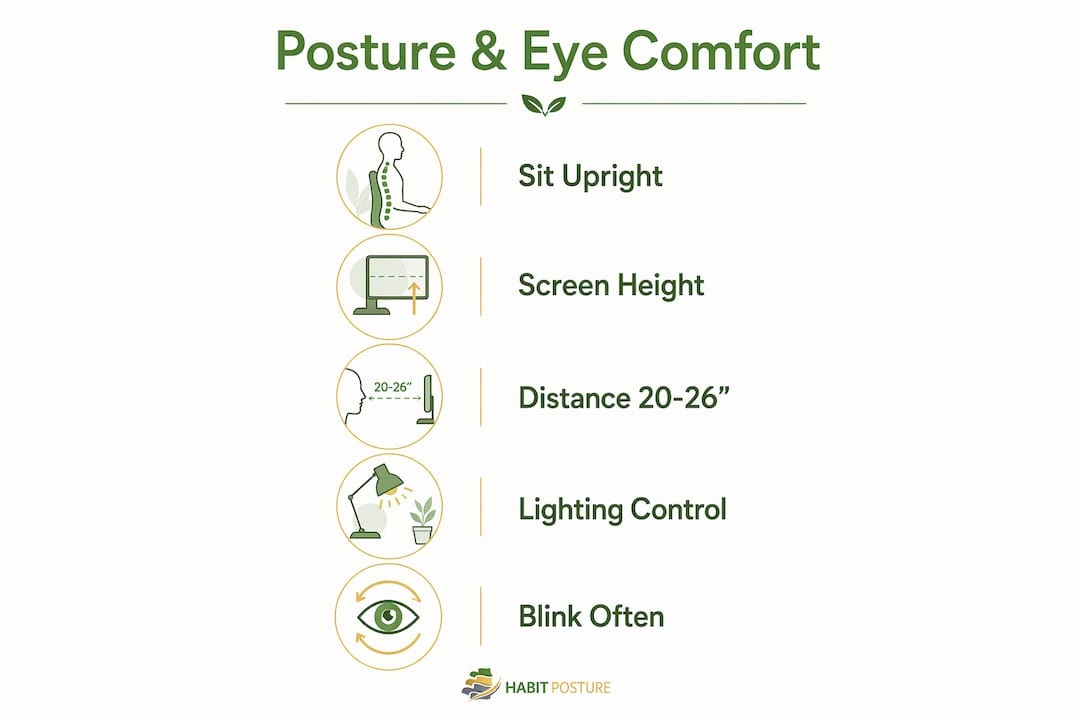
- Monitor distance and height: Position your screen 20–26 inches away, with the top edge at or just below eye level.
- Blink and the 20-20-20 rule: Every 20 minutes, look at something 20 feet away for 20 seconds. Blink consciously twice during each break.
- Chair posture: Sit with feet flat on the floor, lower back supported, and shoulders relaxed over your hips.
Table of Contents
- Can you fix eye strain and posture in five minutes?
- Why does posture affect your eyes?
- How to set up your workstation for both eye and neck comfort
- Which product types actually reduce both eye strain and postural pain?
- How long until you feel better, and how do you build habits that last?
- A short daily routine that relieves eye and upper-body tension
- What should this cost, and where should you spend first?
- Key Takeaways
- The fastest wins are simpler than most people expect
- Habitposture gear that maps directly to these fixes
- Selected sources and further reading
Can you fix eye strain and posture in five minutes?
Yes, and here is exactly how to do it:
- Sit in your normal working position, not a forced “perfect” posture.
- Extend your arm toward the screen. Your fingertips should just graze it. That is arm’s length (20–26 inches).
- Adjust monitor height so the top edge sits at or slightly below your eye level, creating a gentle 0–10° downward gaze.
- Place your keyboard so elbows bend at roughly 90° and wrists stay flat, not bent upward.
- Reduce glare: tilt the monitor 5–10° backward, close blinds behind you, and match screen brightness to room light.
- Set a phone timer for 20 minutes as your first 20-20-20 reminder.
Pro Tip: Calibrate your monitor while sitting exactly how you normally work, not how you think you should sit. Adjustments made in a “photo-ready” posture rarely hold up through a real workday.
Why does posture affect your eyes?
Poor posture increases perceived visual effort through what eye care specialists call the postural-visual trap. When your head drifts forward, neck muscles tighten to support its weight. That tension travels up through the suboccipital muscles and increases the effort your eyes need to focus and converge on the screen. You are not developing eye disease, but your eyes feel heavier and tire faster.
The ergonomic awareness study showed that high ergonomic awareness significantly reduced the odds of postural discomfort by 64%, with daily laptop use over long hours remaining an independent risk factor regardless of awareness. That tells you two things: awareness alone helps, but duration still matters.
Blink rate compounds the problem. Normal blink rate runs 14–16 per minute, but drops to just 4–6 per minute during focused screen use. Fewer blinks mean less tear film, which means dry, irritated eyes. A comprehensive review of digital eye strain confirms that reduced contrast, glare, poor viewing distance, and improper posture all contribute together. Fix the posture, fix the distance, and the blink rate problem becomes much easier to manage.
How to set up your workstation for both eye and neck comfort
Start with these specific targets, then use the measurement methods below to hit them without any special tools.
| Setting | Target | Quick test |
|---|---|---|
| Monitor distance | 20–26 inches | Arm’s-length fingertip check |
| Top-of-screen gaze angle | 0–10° downward | Top edge at or just below eye level |
| Blink rate (screen use) | Aim for 10+ per minute | Conscious blink every 20-min break |
Monitor and chair:
- Raise or lower the monitor so the top edge aligns with your eye level. Use a monitor arm, a riser, or a firm stack of books as a starting point.
- Adjust chair height so your feet rest flat on the floor and your thighs are roughly parallel to it.
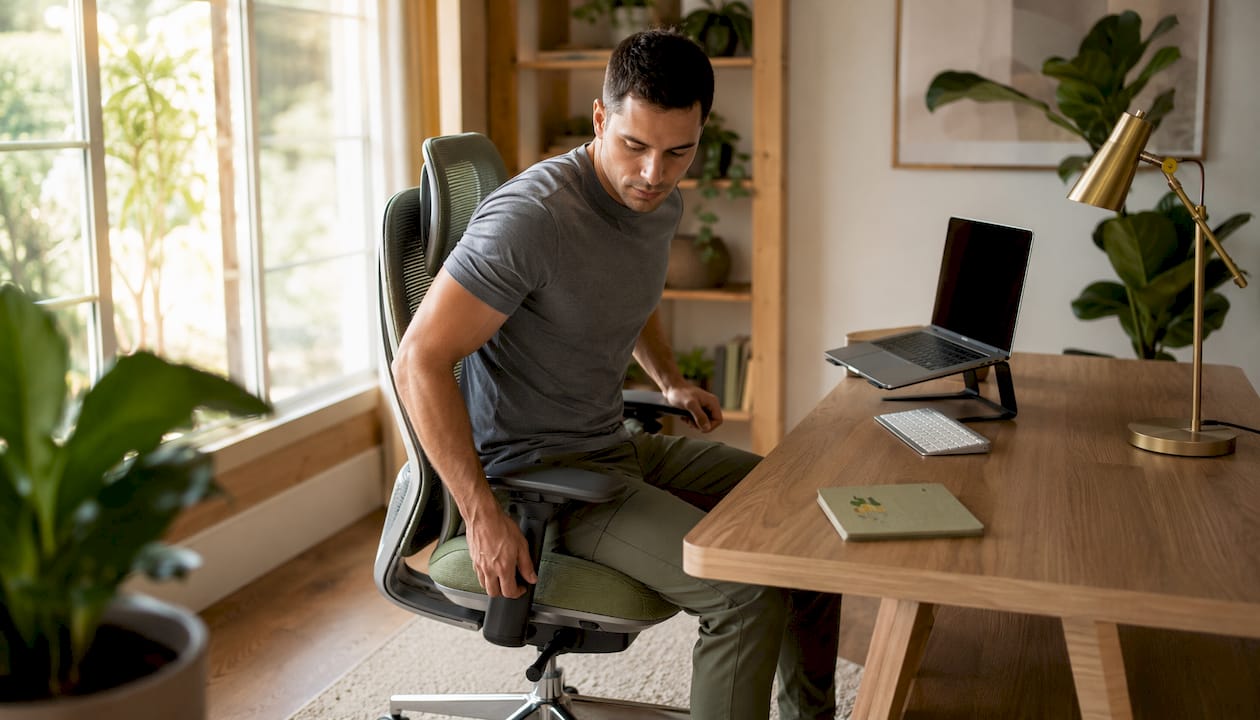
- Set lumbar support to fill the natural curve of your lower back. Your desk setup ergonomics directly affects how long you can sit without compensating with your neck.
Laptop users: A laptop on a desk forces you to hunch. Use a riser or external monitor plus an external keyboard and mouse. Position the external monitor as you would a desktop screen.
Multi-monitor setups: Place your primary screen directly ahead. Secondary monitors should sit at the same height and angle, rotated slightly inward so your neck stays neutral.
Lighting and glare: Position the screen perpendicular to windows, not facing them. Use a shaded desk lamp for task lighting rather than overhead fluorescents alone. A matte anti-glare screen filter cuts reflections without dimming your display.
Pro Tip: If you wear progressive or bifocal lenses, lower the monitor slightly below the standard target. This lets you read through the bottom portion of the lens without tilting your head back, which strains the neck and shifts your gaze angle.
Which product types actually reduce both eye strain and postural pain?
The highest-impact purchases share one trait: adjustability. A product that fits your exact body and desk beats a premium fixed-position item every time.
- Monitor arm: Unlocks infinite height, depth, and tilt adjustment. Most ergonomic desk setups recommend this as the single best first purchase because it corrects distance and angle simultaneously.
- Adjustable ergonomic chair: Look for lumbar support that moves up and down, adjustable seat depth, and armrests that raise to elbow height. A chair that fits your body keeps your spine neutral and your head over your shoulders.
- External keyboard and mouse: Keeps wrists flat and shoulders relaxed. Wireless options let you pull the keyboard closer without the screen moving with it.
- Posture correctors and back braces: Habitposture’s adjustable back braces and posture correctors give your upper back a physical cue to stay open, which reduces the forward-head drift that drives the postural-visual trap.
- High-back office and gaming chairs: Habitposture’s high-back chairs support the full spine, including the upper back and neck, which is where most desk workers lose alignment first.
- Task lighting: A warm, adjustable desk lamp placed to the side reduces the contrast between a bright screen and a dark room.
On blue-light glasses: the American Academy of Ophthalmology does not strongly recommend blue-light-blocking lenses as a primary fix for digital eye strain. Ergonomics, breaks, and proper lighting deliver more consistent relief.
Pro Tip: Buy the monitor arm before anything else. Once your screen is at the right distance and height, many people find their neck pain and eye fatigue drop noticeably within a day or two, before they have changed anything else.
How long until you feel better, and how do you build habits that last?
Eye strain relief often appears within hours of correcting monitor distance and lighting. Meaningful postural change, where your body defaults to a better position without thinking about it, typically takes 1–2 weeks of consistent practice.
Here is a simple two-week plan:
- Days 1–3: Implement the five-minute checklist. Set a 20-minute timer for the 20-20-20 rule. Sit in your adjusted chair and notice where your shoulders drift.
- Days 4–10: Add a 30-second microbreak every 45 minutes. Stand, do two chin tucks, roll your shoulders back. Use a posture habit reminder app or phone alarm.
- Week 2 onward: Add evening recovery stretches for the upper back and neck. Evaluate whether a monitor arm or lumbar support upgrade would lock in the gains.
Pro Tip: Set your reminders to fire during your natural work rhythm, not at arbitrary clock times. If you always get absorbed in a task at 10 AM, a 10:15 reminder is more likely to land.
A short daily routine that relieves eye and upper-body tension
Run through this sequence without leaving your desk:
- 20-20-20 break (every 20 min): Look 20 feet away for 20 seconds. Blink twice, slowly and deliberately.
- Chin tuck (every 45 min): Gently draw your chin straight back, hold 3 seconds, release. Repeat 5 times.
- Scapular squeeze: Pull shoulder blades together and down, hold 5 seconds. Repeat 5 times.
- Upper-trap release: Drop one ear toward the shoulder, hold 20 seconds each side.
- Wrist stretch: Extend one arm, gently pull fingers back with the other hand, hold 15 seconds.
- Gaze-shift drill: Focus on something near (your screen), then far (across the room), alternating 5 times to exercise the ciliary muscles.
- Palming: Cup warm palms over closed eyes for 30 seconds to relieve surface tension.
If any stretch causes sharp pain, numbness, or tingling, stop immediately and consult a healthcare provider. Persistent eye strain or headaches that do not improve with ergonomic changes also warrant a professional eye exam.
What should this cost, and where should you spend first?
Spend on adjustability, not aesthetics. Here is the priority order:
- First: monitor arm or adjustable monitor stand (entry-level options start under $40; mid-range arms with full articulation run $60–$120). This single purchase often delivers the biggest combined eye and neck benefit.
- Second: adjustable ergonomic chair with lumbar support and seat-depth adjustment. Entry-level ergonomic chairs are available under $150; mid-range options with better adjustability range from $200–$400.
- Third: posture support accessories (posture corrector, back brace, lumbar cushion) and a quality keyboard/mouse combo.
- Fourth: task lighting and an anti-glare screen filter, both of which are low-cost but high-impact.
If budget is tight right now, a firm stack of books under your laptop and a wireless keyboard costs almost nothing and gets your screen to the right height immediately. Check out common makeshift desk fixes for more no-cost interim solutions.
Pro Tip: Before buying a chair, check the return window and warranty. An ergonomic chair that cannot be returned if it does not fit your body is a risky purchase. Thirty-day return policies are the minimum worth considering.
Key Takeaways
Correcting your monitor position and posture is the single fastest way to reduce digital eye strain, with ergonomic awareness cutting ocular strain odds by 62% and postural discomfort odds by 64% in a 2025 study.
| Point | Details |
|---|---|
| Monitor distance and height | Keep screen 20–26 inches away; top edge at or just below eye level for a 0–10° downward gaze. |
| Blink rate and 20-20-20 rule | Blink rate drops from 14–16 to 4–6 per minute on screens; practice 20-20-20 every 20 minutes. |
| Postural-visual trap | Forward head posture tightens neck muscles and increases perceived eye effort, even without eye disease. |
| Two-week habit plan | Eye strain relief can appear within hours; consistent postural habit change takes roughly 1–2 weeks. |
| Habitposture gear | Posture correctors, adjustable back braces, and high-back chairs from Habitposture support the upper-back alignment that prevents forward head drift. |
The fastest wins are simpler than most people expect
Most people who complain about eye strain at the end of a long session have never actually measured their monitor distance. They have never consciously blinked during a break. They have never adjusted their chair so their lower back is genuinely supported rather than just vaguely present. These are not complicated interventions. They take five minutes, cost nothing upfront, and the evidence behind them is solid.
What I find most telling is that the 2025 ergonomic awareness study did not test expensive equipment. It tested awareness. People who understood what good ergonomics looked like had dramatically better outcomes than those who did not, regardless of what gear they owned. That means the checklist in this article is genuinely the starting point, not a consolation prize for people who cannot afford a $500 chair.
Buy the monitor arm first. Sit in your real posture, not your aspirational one. Set the timer. The rest follows naturally.
Habitposture gear that maps directly to these fixes
Every item on the checklist above has a physical counterpart that makes the habit easier to keep. Habitposture’s posture correctors give your upper back a constant, gentle cue to stay open, which is exactly what prevents the forward-head drift that drives eye fatigue. The adjustable back braces let you dial in support for your specific spine, whether you are at a standing desk, a gaming chair, or a kitchen table. The high-back office and gaming chairs support your full spine from the lumbar region to the upper back, so your head stays over your shoulders where it belongs.
When you are evaluating any Habitposture product, check three things: does it fit your body size, does it stay comfortable during actual work (not just the first five minutes), and does it come with a clear return policy? All three matter for long-term use.
Shop Habitposture’s ergonomic collection and start with the item that addresses your biggest current gap. If your back rounds by noon, start with a posture corrector. If your chair offers no lumbar support, the high-back chair is the move.
This article is general wellness information, not medical advice. Consult an eye care professional or physical therapist for persistent symptoms.
Selected sources and further reading
- Impact of Ergonomic Awareness on Ocular Strain and Postural Discomfort (2025): The primary study behind the 62% and 64% odds-reduction figures cited throughout this article.
- American Academy of Ophthalmology: Computer Use and Eye Health: Source for blink-rate data, 20-20-20 guidance, and monitor distance recommendations.
- Digital Eye Strain: A Comprehensive Review (PMC): Covers the multifactorial causes of digital eye strain including posture, glare, and viewing distance.
- Complete Ergonomic Desk Setup Guide: An Optometrist’s Approach: Practical measurement methods and optometrist-led setup steps referenced in the workstation section.
- How Your Desk Setup Affects Your Eyes (Optometrist’s Guide): Supports the monitor arm recommendation and the fingertip/arm’s-length measurement method.
If your symptoms persist after making these changes, schedule a comprehensive eye exam. Many cases of stubborn digital eye strain trace back to an uncorrected or under-corrected vision prescription, not just ergonomics.